

 July 8, 2026
 How to share access to Google Ads with us
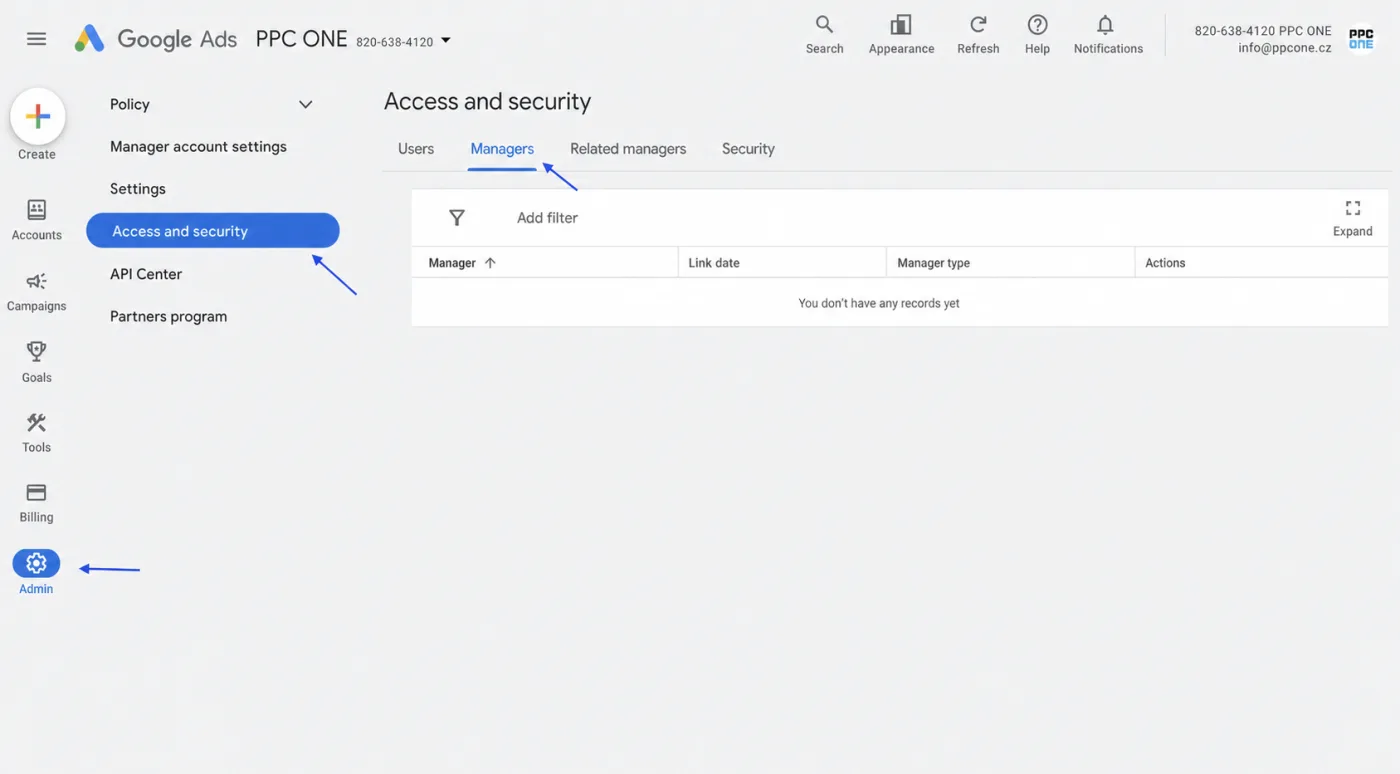
To manage your campaigns, we link your Google Ads account with our manager account. You do not send us a password, and the account remains yours. You only grant us management access. The process takes a few minutes.
What you will need
- Sign in to Google Ads: ads.google.com
- Your 10-digit Customer ID (you will find it in the top right of the account, format 123-456-7890)
Step by step
- Sign in to Google Ads and copy your Customer ID from the top right (10 digits).
- Send us this ID.
- We send a link request to your account from our manager account.
- You get a notification. In the account, click Admin at the bottom left, then open Access and security.
- Switch to the Managers tab, where you will see the link request. For verification, our manager ID is 820-638-4120.
- Click Accept on the request. You can also confirm the request directly from the email you receive.
- Done. Let us know that it is linked and we will check the access.
Frequently asked questions and issues
- Where exactly do I find the Customer ID?
-
After signing in to Google Ads you will find it in the top right of the account. It has the format 123-456-7890. Please send us this 10-digit Customer ID.
- Which ID should I not send?
-
Do not send a Conversion ID, conversion action ID, campaign number or billing ID. For linking via a manager account we only need the Customer ID of your Google Ads account.
- Why should I not just add you as a user by email?
-
With Google Ads we use linking via our manager account. You send us the Customer ID, we send a link request and you approve it in the account. It is the standard agency way of managing accounts.
- Where do I find the link request if I did not get an email?
-
Sign in to the correct Google Ads account, at the bottom left open Admin, then Access and security and the Managers tab. You should see a link request from our manager account there.
- I cannot see the link request.
-
Most often, you are in a different Google Ads account, you sent the wrong Customer ID, or you are not signed in with an account that has admin rights. Check the Customer ID in the top right and, if needed, send it to us again.
- Who can approve the request?
-
Only a user who has admin rights in the given Google Ads account can approve the request. If you do not have them, please forward this guide to the person who manages the account.
- What if the request was accepted in the wrong account?
-
Let us know which Customer ID is the correct one. We will check the linking and, if needed, send a new request to the correct account.
- Will you know my password or take over ownership of the account?
-
No. You do not send us a password and the account stays yours. You only approve our manager account's access to manage Google Ads. You can remove the access at any time under Access and security.
- What happens after I click Accept?
-
The Google Ads account is linked with our manager account. Let us know afterwards that it is linked and we will verify that we can see the account and start working.

CEO & Performance Strategist






 Fast
Fast  Effective
  Nonstop