

 July 8, 2026
 How to share access to Google Search Console with us
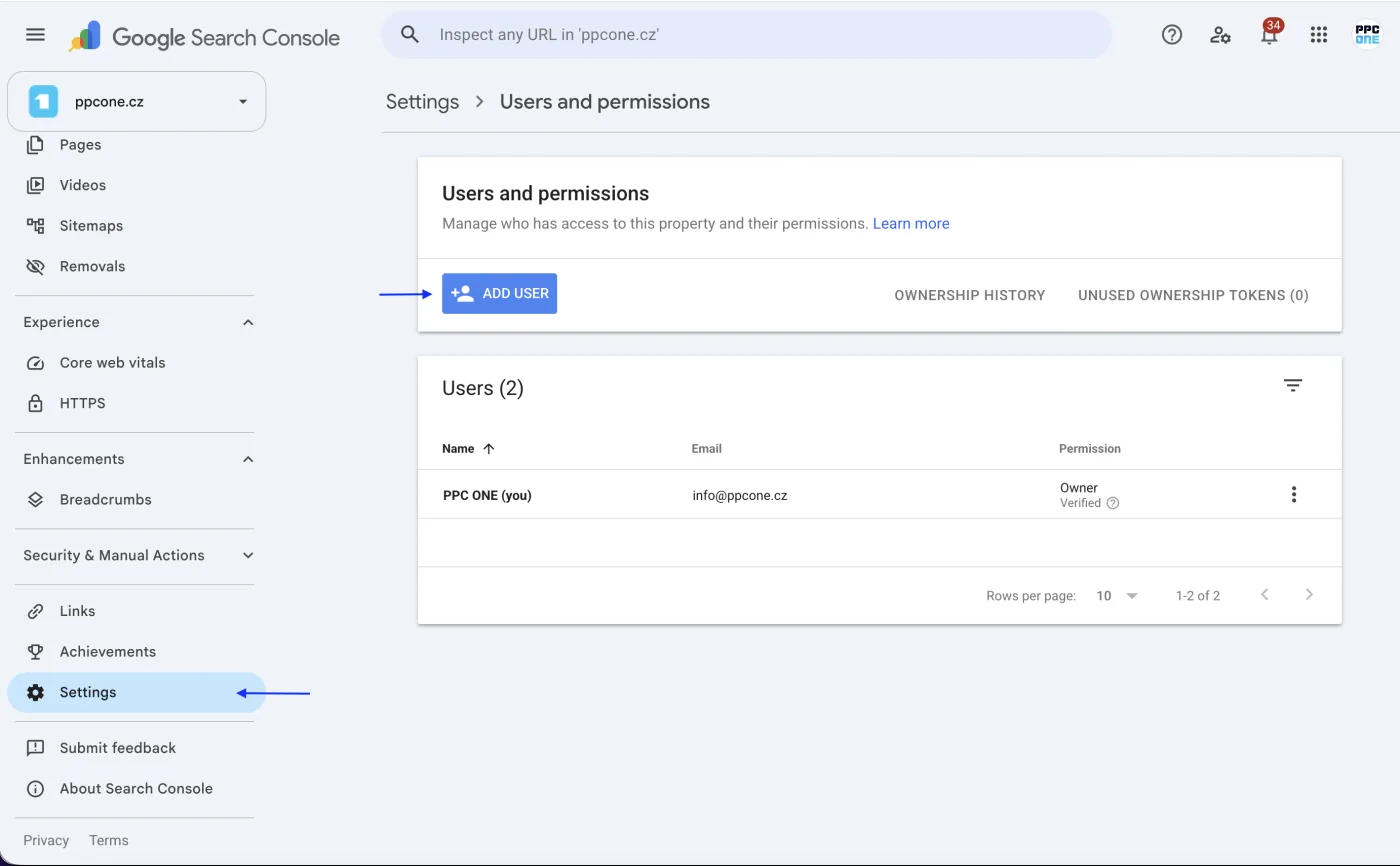
Search Console shows which queries people use to find your site in Google Search and the site’s technical condition. To work with this data, you just need to invite us by email.
What you will need
- Sign in to Search Console: search.google.com/search-console
- Our email for access: [email protected]
Step by step
- Sign in to Search Console and select the correct property (site) at the top left.
- In the left menu click Settings.
- Open Users and permissions.
- At the top right click Add user.
- Enter the email [email protected].
- Set the permission to Full. Use Owner only if we should also manage verification and property settings.
- Click Add.
Frequently asked questions and issues
- Where do I select the correct property?
-
After signing in to Search Console, select the correct property, that is the specific site, at the top left. Access is always added to the selected property.
- Where do I find Add user?
-
In the left menu click Settings, open Users and permissions and click Add user at the top right.
- What permission should we get?
-
For regular work set the Full permission. Choose Owner only if we should also manage verification and property settings.
- I cannot see Add user.
-
Only a property owner can add users. If you are not the owner, ask the person who manages Search Console to add access for [email protected].
- Our site is verified more than once.
-
That is not a problem. Add access via Settings for the property we should work with. If you are not sure, select the property matching the main site and write to us.
- We have multiple sites or subdomains.
-
Access needs to be added to every property we should evaluate. If you share only one site with us, we will not see the other properties in Search Console.
- Search Console shows an email error.
-
Enter exactly [email protected] without a typo or spaces. The address is associated with a Google account, so Search Console can add it.
- What will you see after sharing?
-
We will see the selected property's data, for example search queries and technical information about the site. You do not send us a password and you can remove the access at any time under Users and permissions.
- How do I verify it is done?
-
The address [email protected] should be in the list of users with Full permission, or as an Owner. After adding it, write to us and we will check that we can see the correct property.

CEO & Performance Strategist






 Fast
Fast  Effective
  Nonstop