

 July 8, 2026
 How to share access to Google Analytics 4 with us
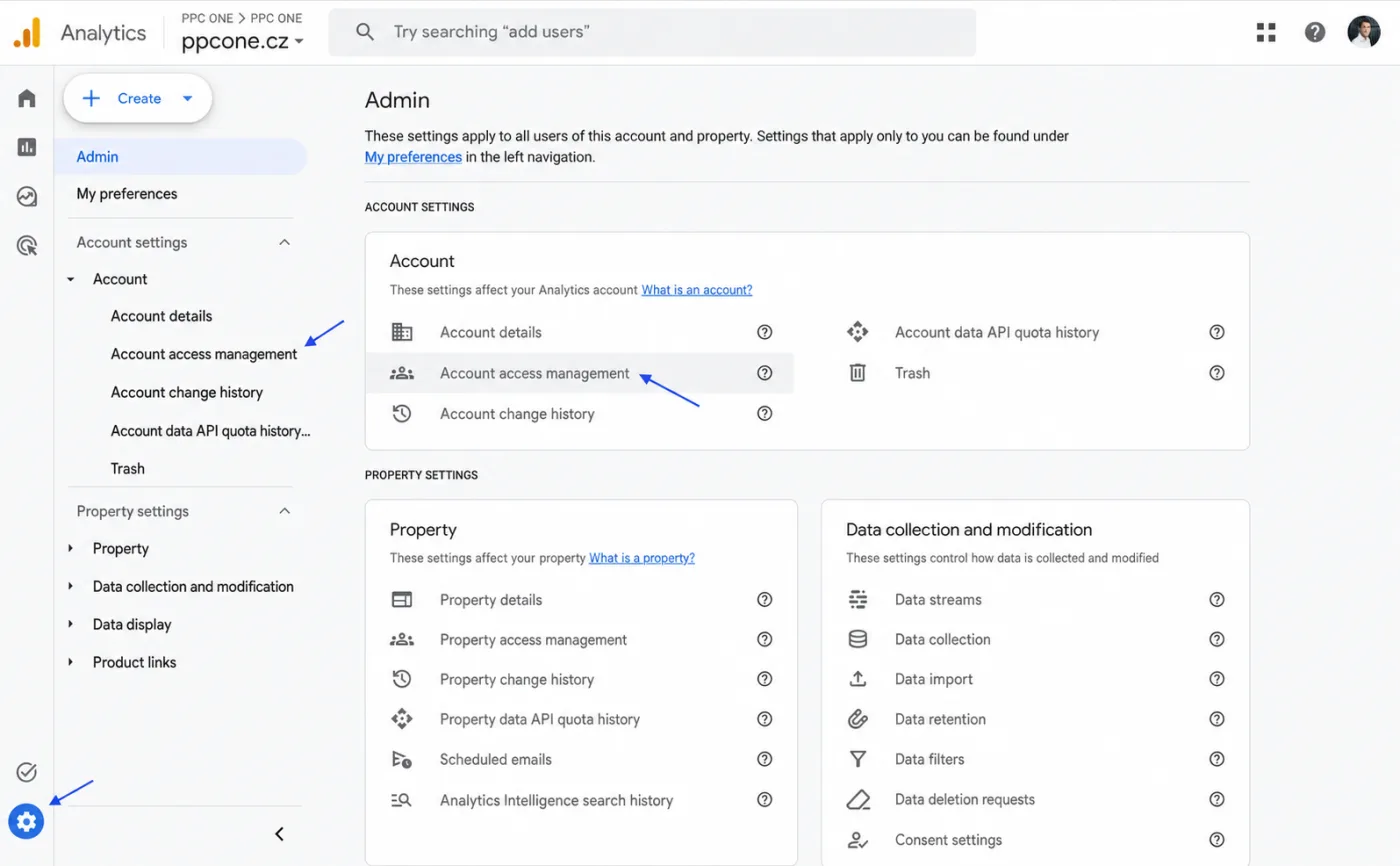
To see how the site performs and where conversions come from, we need access to your Google Analytics 4 property. Just invite us by email, you do not send us a password.
What you will need
- Sign in to Google Analytics: analytics.google.com
- Our email for access: [email protected]
Step by step
- Sign in to Google Analytics and open the correct account and property.
- At the bottom left click Admin.
- For access to the whole account, choose Account access management under Account. For a single property, choose Property access management under Property.
- At the top right click + and select Add users.
- Enter the email [email protected].
- Choose the Editor role, or Administrator if we should also manage access, and keep Notify new users by email checked. Do not select the No Cost Metrics or No Revenue Metrics data restrictions.
- Click Add.
Frequently asked questions and issues
- Should I share the Account or the Property?
-
If we should work with all properties under the given account, choose Account access management. If you want to give us access to just one property, use Property access management.
- Where do I find access management?
-
In Google Analytics click Admin at the bottom left. Under the Account section you will find Account access management, under the Property section you will find Property access management.
- Which role should we choose?
-
In most cases choose Editor. It lets us work with the measurement setup and reporting. Only choose the Administrator role if we should also manage other users' access.
- Why should I not check the cost and revenue metric restrictions?
-
To evaluate campaigns we need to see costs, revenue and related metrics. If you select these restrictions, some cost or revenue values may be blank or incomplete.
- I cannot add a user.
-
Only a user with the Administrator role can add users. If you do not have this role, ask the Google Analytics admin to add access for [email protected] for you.
- Google Analytics shows an email error.
-
Check that you enter exactly [email protected] without a typo or spaces. The address is linked to a Google account, so Google Analytics can accept it.
- We have multiple sites or multiple properties.
-
If they are under one account, access at the account level is easiest. If you want to share only selected sites, add us separately via Property access management for each specific property.
- The invite did not arrive or you cannot see it.
-
Keep the email notification checked and write to us after adding. Access often works even if we do not receive the email invitation, because we verify it directly in the account.
- How do I know you have the access set up correctly?
-
After clicking Add, [email protected] should appear in the list of users for the given account or property. Write to us and we will check that we can see the correct property and the needed data.

CEO & Performance Strategist






 Fast
Fast  Effective
  Nonstop