

 July 8, 2026
 How to share access to Google Tag Manager with us
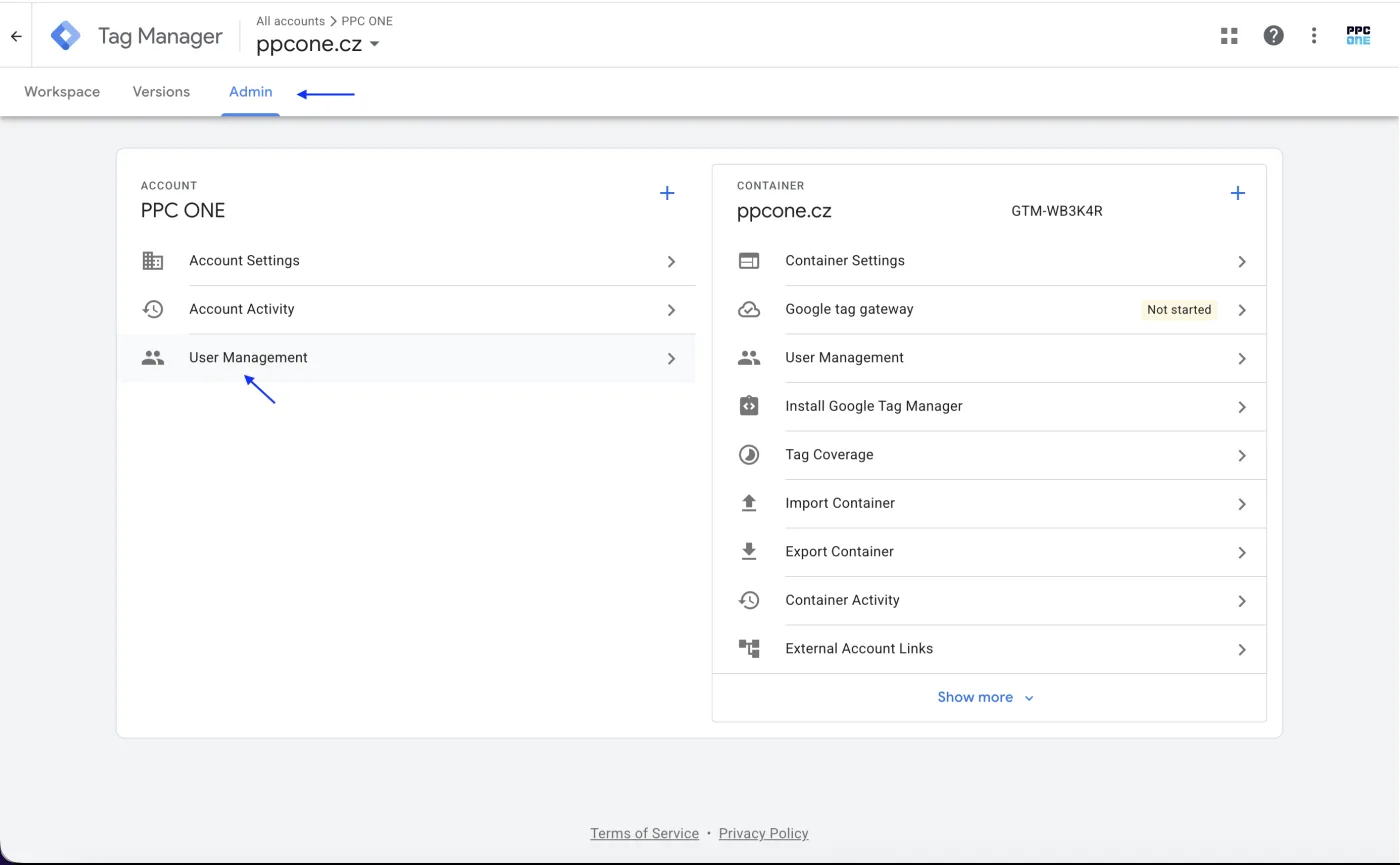
Through Google Tag Manager we deploy and manage measurement tags. We need access to your account and, above all, to the specific container. Just invite us by email.
What you will need
- Sign in to Tag Manager: tagmanager.google.com
- Our email for access: [email protected]
Step by step
- Sign in to Tag Manager and open the correct account.
- Click Admin.
- In the Account column choose User Management.
- Click the + icon and select Add users.
- Enter the email [email protected].
- Under Account permissions, set Administrator. Under Container permissions, select your container and the Publish permission.
- Click Invite.
Frequently asked questions and issues
- What is the difference between account and container access?
-
The account is the top level in Tag Manager. The container is the specific measurement setup for a site. We need access to the account and above all permission for the correct container, otherwise we cannot edit and deploy measurement on the site.
- Which container should I select?
-
Select the container that belongs to the site whose measurement we handle. If you have multiple containers and are not sure, send us their names or a screenshot.
- Why do you need Account Permissions as Administrator?
-
The Administrator permission lets us manage the account to the extent needed for measurement. The access still stays under your control and you can remove it at any time.
- Why do you need the Publish permission on the container?
-
Without Publish we can prepare changes but cannot deploy them. For measurement tags, deployment is essential. Otherwise, the changes would remain work in progress in Tag Manager.
- Where do I find User Management?
-
After opening the correct account in Tag Manager, click Admin. In the Account column open User Management, then click the + icon and choose Add users.
- I cannot add a user or cannot see the permission options.
-
You probably do not have sufficient rights in the given Tag Manager account. Ask the person who manages the account to set up access for [email protected] for you.
- Tag Manager shows an email error.
-
Enter exactly [email protected]. Tag Manager accepts Google accounts, and this address is associated with a Google account.
- We have multiple sites or multiple containers.
-
Set up access to every container we should work with, always with the Publish permission. If our cooperation does not concern a particular site, you do not have to share that container.
- How do I verify it is done?
-
After clicking Invite, the user [email protected] should be visible in the list of users. Write to us afterwards and we will check that we have access to the correct container and the Publish permission.

CEO & Performance Strategist






 Fast
Fast  Effective
  Nonstop