

 July 8, 2026
 How to share access to Looker Studio with us
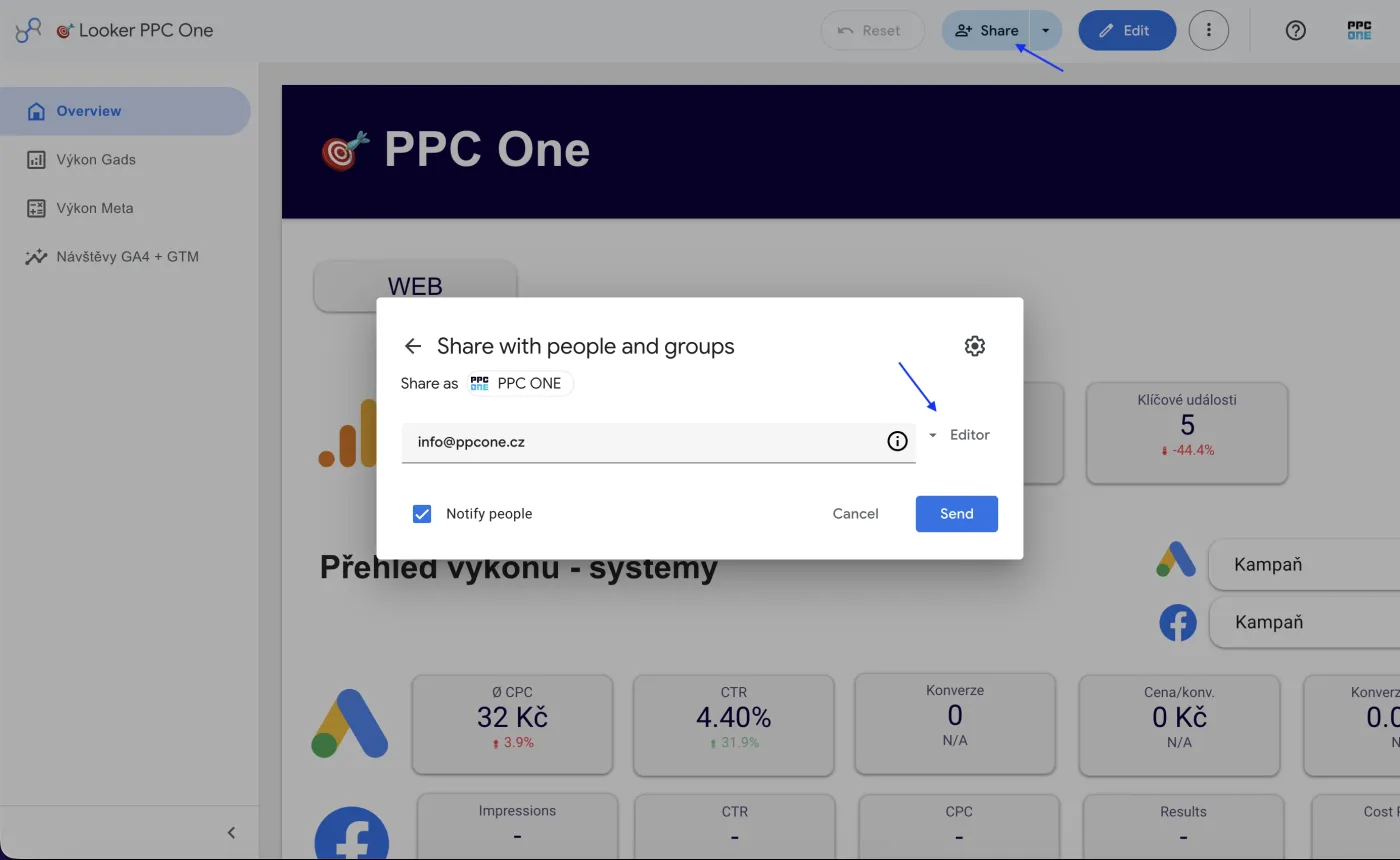
Looker Studio holds reports and dashboards. Unlike most platforms, you do not share a whole account here, but a specific report and, separately, its data source. The second step matters. Otherwise, we might not see any data in the report.
What you will need
- Sign in to Looker Studio: lookerstudio.google.com
- Our email for access: [email protected]
Step by step
- Open the specific report you want to share.
- At the top right, click Share.
- Enter [email protected], choose the Editor role, and click Send.
- Go back to the Looker Studio home screen and find the data source the report uses.
- On the data source, click More (three dots) and choose Share.
- Enter [email protected] and set the Editor role.
- Done. Please share the data source too, not just the report.
Frequently asked questions and issues
- Why isn't it enough to share just the report?
-
In Looker Studio the report and the data source are often shared separately. When we get only the report, we can open it, but the data may not load or we may not be able to edit the connection.
- Which role should I set on the report?
-
On the report set the Editor role for [email protected]. Use the Viewer role only if we should just view the report and not edit it.
- Which role should I set on the data source?
-
Set the Editor role on the data source too. That way we can verify and edit the data connection if it is needed for the report to work correctly.
- Where do I find the data source?
-
Go back to the Looker Studio home screen and find the data source the report uses. Click More, the three-dot menu, on the data source, then choose Share.
- I cannot see the data source anywhere.
-
If the data source is embedded directly in the report, it is shared with the report automatically. Standalone data sources that appear as separate items in Looker Studio are the ones that usually need to be shared separately.
- The report shows "no data" or empty charts.
-
The most common cause is that we have access to the report but not to the data source. Please check the data source sharing according to steps 4 to 6 and set the Editor role.
- We have multiple reports.
-
Share every report we should work with. If they use different data sources, each relevant data source needs to be shared too.
- The invite did not arrive.
-
Check that you entered exactly [email protected] and sent the sharing via Send. Then write to us and we will verify the access directly in Looker Studio.
- How do I know the sharing is complete?
-
On both the report and the data source, the address [email protected] should be listed with the Editor role. If you are not sure, send us the report names and we will verify what is still missing.

CEO & Performance Strategist






 Fast
Fast  Effective
  Nonstop